Best CRM ERP Integrations for SMEs in 2026
Compare CRM–ERP options for SMEs and pick the simplest fit — CRM+accounting for invoices, ERP or iPaaS for inventory, multi-entity, and complex orders.

If your CRM and finance system don’t sync, you pay for it in duplicate work, billing delays, and stock mistakes. From what I see in this guide, the right pick depends on how far your business has moved past basic invoicing.
I’d boil the article down like this:
- Zoho CRM + Zoho Books + Zoho Inventory fits teams that want one vendor and a tighter sales-to-finance flow.
- HubSpot + QuickBooks Online and Pipedrive + QuickBooks fit lighter quote-to-invoice needs.
- Method CRM + QuickBooks gives QuickBooks-first teams more control, plus two-way sync.
- HubSpot + NetSuite, Salesforce + Business Central, and Salesforce + SAP Business One fit firms with more finance, stock, and order complexity.
- Middleware/iPaaS fits mixed stacks, custom flows, and setups with more than two systems.
A few numbers stand out:
- Zoho case data showed the lead-to-order cycle drop from 18 days to 7 days
- Stock-out incidents in that case dropped 63%
- Salesforce + Business Central often takes about 4–6 weeks
- Celigo-led HubSpot + NetSuite work can cost about $12,000–$45,000 upfront
- ERP-focused middleware can start around $99/month
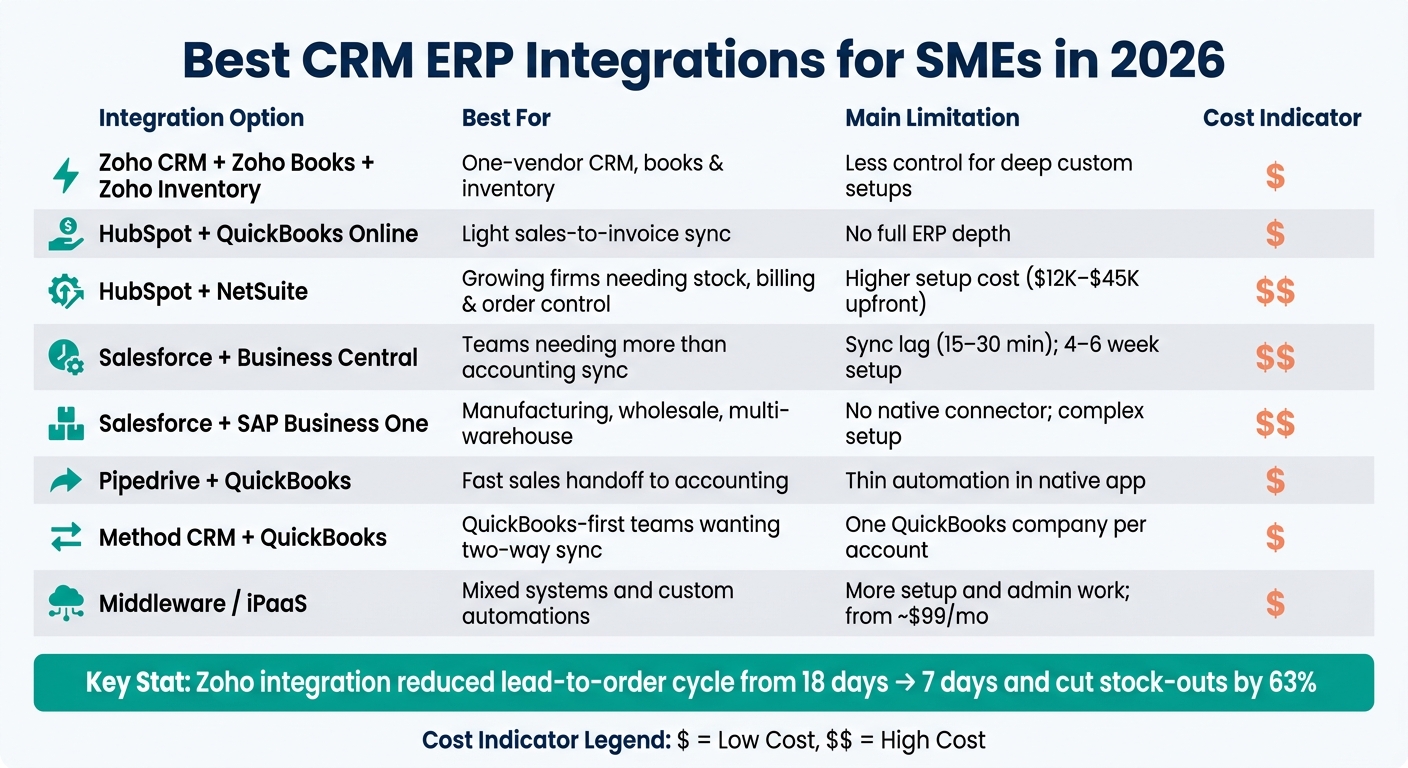
Best CRM ERP Integrations for SMEs 2026: Quick Comparison Guide
How and When to Integrate an ERP with your CRM
sbb-itb-fd683fe
Quick Comparison
| Option | Best for | Main limit | Cost pattern |
|---|---|---|---|
| Zoho suite | One-vendor CRM, books, and inventory | Less control over deep custom setups | App plans or bundled suite |
| HubSpot + QuickBooks Online | Light sales-to-invoice sync | No full ERP depth | App subscriptions, plus add-ons if needed |
| HubSpot + NetSuite | Growing firms needing stock, billing, and order control | Higher setup cost | Licenses + connector + project fees |
| Salesforce + Business Central | Teams needing more than accounting sync | Sync lag and setup time | Per-user ERP/CRM + connector + services |
| Salesforce + SAP Business One | Manufacturing, wholesale, multi-warehouse | No native connector | License + connector/iPaaS + setup |
| Pipedrive + QuickBooks | Fast sales handoff to accounting | Thin automation in native app | CRM + QBO + low-cost automation add-on |
| Method CRM + QuickBooks | QuickBooks-first teams wanting two-way sync | One QuickBooks company per Method account | Seat-based subscription |
| Middleware / iPaaS | Mixed systems and custom automations | More setup and admin work | Monthly platform fee + setup |
My main takeaway is simple: start with the least complex setup that still covers your current workflow. If you only need deals, invoices, and payment status, a CRM + accounting link is often enough. If you need multi-warehouse stock, multi-entity finance, or order routing, I’d move to ERP or middleware sooner rather than later.
1. Zoho CRM + Zoho Books + Zoho Inventory / Zoho One
Zoho’s native suite links CRM, Books, and Inventory with built-in syncs, so teams can skip middleware. The tradeoff is pretty simple: you get an easier setup, but less room to customize every detail.
Integration Method
The apps connect natively at the org level, so there’s no need for a third-party connector. Zoho Books and Zoho Inventory sync contacts, items, invoices, bills, sales orders, and purchase orders. Zoho CRM also connects to the Finance Suite, which lets users see invoices, estimates, purchase orders, sales orders, expenses, and subscriptions right inside CRM.
There’s one catch. Zoho CRM’s native finance modules do not sync with the Books-linked modules, so teams need to pick one record set as the source of truth.
Supported Workflows
The main workflow covers lead to cash. A deal closes in CRM, a sales order is created, Zoho Inventory updates stock levels, Zoho Books creates an invoice, and payment status syncs back to CRM.
That setup matters most for SMEs that want one place for orders, stock, invoices, and payment status. If you sell across channels, Zoho Inventory can also pull in orders from Shopify or Amazon, then send fulfillment and finance data into Books and CRM.
A partner case study for Arvind Precision Parts shows what this can look like in practice. After connecting Zoho CRM and Zoho Inventory, the lead-to-order cycle went from 18 days to 7 days, and stock-out incidents dropped by 63% in Q1 after go-live.
Setup Effort
Setup is guided, but the cleanup work comes first. In most cases, teams should expect a few days to a few weeks of prep. That usually means locking down the chart of accounts in Books, setting up the item catalog in Inventory, and removing duplicate contacts in CRM. After that, configuration and testing usually take a few more days.
If the setup includes multiple warehouses, several sales channels, or more detailed U.S. accounting needs, many teams bring in a Zoho partner or consultant.
Pricing Style
Zoho has two pricing paths. With the per-app model, you subscribe to CRM, Books, and Inventory separately. Zoho Books pricing runs $40, $120, and $240 per organization per month. Zoho One puts CRM, Books, and Inventory under one license, though shared caps can be a problem for multi-location teams.
| Pricing path | Best when | Cost structure |
|---|---|---|
| Per-app subscriptions | You only need CRM + Books + Inventory | Per organization or per user, billed monthly or annually |
| Zoho One bundle | You want CRM, finance, and inventory in a single suite | Bundled licensing with shared app limits |
Teams that don’t want a full Zoho suite often look next at lighter CRM-plus-accounting pairings.
2. HubSpot CRM + QuickBooks Online
Use this pair when you want a light CRM-to-accounting sync without jumping into a full ERP. It’s the lightest native setup on this list. That makes it a good fit for SMEs that need a clean deal-to-invoice flow, but not inventory management or multi-warehouse support.
Integration Method
HubSpot connects to QuickBooks Online through a native app in the HubSpot App Marketplace. You install the QuickBooks Online app in HubSpot, authorize Intuit, and then choose the sync direction for each object - basically, which records sync and whether HubSpot or QuickBooks acts as the source of truth.
The integration supports syncing contacts, items, invoices, and payments between the two systems. It works with QuickBooks Online, not QuickBooks Desktop.
Supported Workflows
The most common use case is quote-to-cash. A deal closes in HubSpot, an invoice gets created in QuickBooks Online, and the payment status syncs back to the HubSpot deal so the sales team can see if the customer has paid.
HubSpot workflows can also trigger other QuickBooks actions, including:
- estimates
- sales receipts
- expenses
- refund receipts
For most SMEs, the cleanest setup is simple: use QuickBooks Online as the accounting system of record, and use HubSpot as the customer-facing layer for deal tracking and account context.
Setup Effort
Setup requires HubSpot Super Admin or App Marketplace access, plus QuickBooks Online admin rights.
A smart way to roll this out is to start with contacts and items first. After that, confirm mappings and deduplication rules, then turn on invoice sync. That step-by-step approach helps cut down on duplicate records and product catalog mismatches.
If your setup gets more involved - say you need multiple QuickBooks entities, custom objects, or deeper automation - third-party tools can extend what the native integration can do.
Pricing Style
Your cost comes from three places: HubSpot, QuickBooks Online, and any add-on integration fees. Some advanced features - like pulling HubSpot deals into QuickBooks as draft invoices for review and approval - are tied to QuickBooks Online Advanced.
Third-party integration tools usually follow tiered monthly pricing. Entry plans often start around $49/month, while higher tiers come in at $99/month or more, depending on sync frequency and how much customization you need.
| Cost component | What it covers |
|---|---|
| HubSpot subscription | CRM, workflows, deal management |
| QuickBooks Online plan | Accounting, invoicing, payments |
| Integration app (if needed) | Advanced sync, custom mappings, multiple QuickBooks entities |
SMEs that need inventory, multi-entity finance, or deeper control usually outgrow this native connector and move to a stronger ERP route. When those needs show up, the next step is usually a full ERP connection.
3. HubSpot CRM + NetSuite
When QuickBooks Online starts to hit its limits on inventory, multi-entity accounting, or revenue recognition, HubSpot + NetSuite is often the next move. HubSpot manages the pipeline. NetSuite takes care of orders, billing, and fulfillment.
Integration Method
HubSpot connects to NetSuite through Data Sync, while NetSuite needs the HubSpot Sync Bundle and token-based auth. If you have a multi-entity setup or a heavily customized NetSuite account, Celigo or another iPaaS can step in to handle mappings, retries, monitoring, and routing.
Supported Workflows
A Closed Won deal in HubSpot can automatically create a sales order in NetSuite. The setup can also sync:
- SKUs
- Invoice and payment status
- Revenue attribution tied back to HubSpot campaigns
Setup Effort
Native rollouts usually take a few days to under two weeks. iPaaS projects take longer. A smart way to start is with contacts, deals, and sales orders, then bring invoices into the mix after that.
Pricing Style
The cost usually comes from three buckets: your HubSpot and NetSuite subscriptions, connector or iPaaS fees, and one-time implementation work.
A scoped Celigo implementation for a standard lead-to-cash setup usually runs about $12,000–$25,000 upfront. More involved scopes can land in the $25,000–$45,000 range. Ongoing iPaaS fees usually sit between $300 and $3,000 per month, depending on how many flows you run and how much data moves through the system.
| Cost component | Typical range |
|---|---|
| Native/marketplace connector setup | Usually a modest implementation fee |
| Middleware implementation (e.g., Celigo) | $12,000–$45,000 one-time |
| iPaaS subscription (ongoing) | $300–$3,000/month |
| HubSpot + NetSuite licenses | Separate foundational costs |
4. Salesforce + Microsoft Dynamics 365 Business Central
This pairing works well for SMEs that have moved beyond simple accounting syncs but still don't want a full NetSuite-style rollout. Think of it as the Microsoft-based next step for teams outgrowing accounting-led setups. It makes sense for companies that need tighter finance and inventory control than QuickBooks-based stacks can offer, without taking on a heavier ERP system.
Integration Method
Most teams connect these systems with prebuilt connectors or iPaaS tools like Celigo, DBSync, or Commercient SYNC. These usually get installed as extensions in Business Central or as managed packages in Salesforce, then set up through guided wizards. Some connectors also use secure incremental sync, which helps with audit trails.
Supported Workflows
For most teams, the main use case is quote-to-cash. Once a deal is won, a Salesforce Opportunity or Quote can turn into a Business Central Sales Order, while invoice and payment updates flow back into Salesforce. Product and pricing data usually move from Business Central into Salesforce so SKUs and price books stay in line.
There is one catch. Inventory availability and shipment status usually sync back to Salesforce with a delay of 15–30 minutes. In a fast-moving catalog, that lag can increase stockout risk.
Setup Effort
Even with a prebuilt connector, most teams should expect about 4–6 weeks from kickoff to go-live. A big reason is that Business Central's accounting rules are harder to map cleanly to Salesforce's sales model. Then user acceptance testing adds more time to the project.
Pricing Style
Business Central Essentials starts at about $80/user/month, and Premium runs about $110/user/month, both billed annually. On top of that, third-party connector or iPaaS subscriptions usually fall in the $250–$800/month range, and standard implementation services often add a $5,000–$15,000 one-time cost.
| Cost component | Typical range |
|---|---|
| Business Central Essentials license | $80/user/month (billed annually) |
| Salesforce Starter Suite | $25/user/month |
| Salesforce Enterprise | $165/user/month |
| Third-party connector/iPaaS subscription | $250–$800/month |
| Implementation and configuration services | $5,000–$15,000 one-time |
If your ERP core is SAP instead of Microsoft, the next option follows the same Salesforce-led pattern.
5. Salesforce + SAP Business One
This pairing leans heavily into ERP, which makes it a strong match for SAP-based SMEs with more involved operations. Think manufacturing, wholesale distribution, or multi-warehouse setups where a basic accounting sync just won't cut it. Salesforce runs the sales side. SAP Business One handles inventory, fulfillment, pricing, invoicing, and payments.
Integration Method
SAP Business One doesn't come with a native Salesforce connector, so most SMEs connect the two with a partner connector, Integration Hub templates, iPaaS, or custom APIs. Prebuilt connectors usually rely on SAP B1's Service Layer and Salesforce's REST API to move standard objects with little code.
Custom integrations are also possible, but they take more engineering time and more upkeep as both platforms change over time. That matters because the setup can keep sales, stock, and pricing in sync in real time.
Supported Workflows
Once the connection is in place, the main payoff is automated order and status sync. Salesforce manages the sales workflow, while SAP Business One stays the back-office source of truth.
When a Salesforce opportunity moves to Closed Won, SAP Business One creates the sales order with customer, product, quantity, and pricing details mapped across. It then sends the SAP order number back into Salesforce for tracking.
After that, invoice status, payment balances, stock availability, and product or price list data sync back into Salesforce. That gives reps the info they need to answer customer questions without jumping into the ERP.
What makes this pairing different from Business Central or NetSuite is SAP Business One's deeper support for multi-warehouse control, more detailed price lists, and production-linked workflows. That makes it a better fit for manufacturers and distributors dealing with layered inventory and pricing rules.
Setup Effort
Plan for a multi-week implementation, not a plug-and-play rollout. A typical project includes a Salesforce admin or developer, an SAP B1 functional consultant, and often a middleware specialist.
The scope usually includes accounts, contacts, products, price books, opportunities, sales orders, invoices, and payments. Then comes system setup and testing across actual sales and fulfillment scenarios.
One issue that comes up a lot is duplicate or mismatched customer records caused by inconsistent naming between systems. A data-cleanup pass before go-live can save a lot of pain later.
Pricing Style
Implementation for this pairing usually lands in the $8,000–$28,000 range, depending on how many objects you sync, which direction the data moves, and how involved the deployment is. Ongoing iPaaS or connector fees often fall between $500–$2,500/month, based on tier and data volume.
Salesforce licensing calls for a Professional or Enterprise edition with API access, and SAP Business One Professional user licenses add to the recurring spend. The tradeoff is simple: higher cost, but more control for complex operations.
| Cost component | Typical cost / note |
|---|---|
| Implementation (project-based) | $8,000–$28,000 |
| iPaaS/connector subscription | $500–$2,500/month |
| Salesforce licensing | Professional or Enterprise edition with API access |
| SAP Business One licensing | Professional user licenses add to recurring cost |
For lighter sales-and-accounting stacks, the next option is Pipedrive + QuickBooks.
6. Pipedrive + QuickBooks
Use this combo when you want a fast handoff from sales to accounting and you don’t need inventory, warehousing, or a multi-entity ERP. It’s the lightest sales-first option on this list: Pipedrive runs the pipeline, and QuickBooks Online handles the books.
Integration Method
Pipedrive has a native QuickBooks Online app in the Pipedrive Marketplace. It works with QuickBooks Online only. If you use QuickBooks Desktop, you’ll need a third-party connector or middleware instead.
For more advanced workflows, teams often add Zapier or Make. That’s usually how they get two-way sync, custom field mapping, and event-based automations the native app doesn’t handle. That gap is often the point where a simple setup starts to need middleware.
Supported Workflows
The main workflow is simple: when a deal is marked "Won" in Pipedrive, QuickBooks creates an invoice automatically and pulls over customer, amount, and line-item data. Invoice status then syncs back into the Pipedrive deal view, so reps can check payment status without leaving the CRM.
Contact sync works both ways at a basic level, but existing records often need a manual linking step during setup. There’s also one gap worth knowing about: the native sync does not move a deal to the next pipeline stage when QuickBooks shows payment received. If you want that trigger, use Zapier or Make.
Setup Effort
Once you’ve defined the invoice flow, setup is mostly about mapping. Connecting Pipedrive to QuickBooks Online takes under 10 minutes. The bigger job is cleaning up field mappings and product names.
In plain English, that means:
- Map deal fields to the right QuickBooks accounts
- Make sure product names match in both systems
- Check for duplicate entries before the sync goes live
Before launch, test the sync with a small batch of contacts and deals. It’s a simple step, but it can save a lot of cleanup later. It also helps to decide early which system owns what: Pipedrive for pipeline status, QuickBooks for invoices and payment records.
Pricing Style
Pipedrive’s QuickBooks app is available on Professional, Power, and Enterprise plans. QuickBooks Online requires at least Simple Start.
If you add Zapier or Make for more advanced automations, plan for $15 to $30 per month, based on task volume. Teams that need custom triggers or deeper sync usually end up moving to middleware.
7. Method CRM + QuickBooks
Compared with lighter QuickBooks sync tools, Method gives you more control. You get workflow automation, approvals, and a customer portal on top of the QuickBooks connection. It works best for QuickBooks-first SMEs that want a CRM without moving their accounting out of QuickBooks. Sales and service teams can work in Method while QuickBooks remains the books.
Integration Method
Method uses a two-way real-time sync with both QuickBooks Online and QuickBooks Desktop - including Pro, Premier, and Enterprise. When something changes in either system, it updates automatically in the other. Each Method account connects to one QuickBooks company file.
That setup is simple if you run a single entity. If you manage multiple entities, though, it can feel tight fast.
Supported Workflows
The sync covers customers, vendors, estimates, invoices, sales orders, payments, items, classes, and price levels. That makes Method a strong match for service businesses, contractors, and B2B teams that want a clean path from quote to invoice without re-entering data.
Here’s what that looks like in practice: a contractor can build an estimate in Method, send it for approval, and turn it into a QuickBooks invoice with one click. That kind of handoff saves time and cuts down on mistakes.
Method also includes a customer portal. Clients can view invoices, check job status, and pay balances online. So instead of splitting CRM tasks, billing, and customer updates across a bunch of tools, you can keep them in one flow.
It handles CRM and workflow needs well, but it’s not built for complex ERP jobs like multi-entity accounting or advanced inventory.
Setup Effort
Setup is moderate. Plan for workflow configuration, field mapping, and no-code customization so Method matches how your team already uses QuickBooks. That can include screens, forms, workflows, and approval steps.
Bring accounting in early. That helps keep QuickBooks as the system of record for financial data and avoids messy sync issues later. A small pilot run is also a smart move, since it can catch mapping problems before they spread.
Pricing Style
Method uses subscription pricing based on user seats and the features you choose. QuickBooks integration is included. In short, cost goes up as your team size and feature needs grow.
If your setup needs to do more than connect QuickBooks and CRM, middleware is usually the next move.
8. Middleware and iPaaS for CRM-ERP Integration
Use middleware when your CRM and ERP don’t have a native connector, or when the built-in sync is too limited. Native connectors often handle the basics. But once you need custom objects, multi-entity setups, or a mix of cloud and on-premise systems, they tend to hit a wall.
For SMEs, this matters most when you’re working with one CRM and one ERP that should connect cleanly but don’t.
Integration Method
Most iPaaS platforms connect your CRM and ERP through API connectors that sync data between systems in a secure way. Instead of writing code from scratch, you work inside a visual builder to set up triggers, map fields, and apply conditional logic.
In practice, SMEs tend to pick tools based on the setup they already have:
- Cloud iPaaS for cloud apps
- Hybrid middleware for cloud-to-on-premise connections
- ESB middleware for larger, centralized environments
The tools themselves also tend to fit different use cases. Zapier and Make work well for lighter HubSpot + QuickBooks Online flows. Celigo is often used in NetSuite-heavy stacks. APPSeCONNECT fits SAP Business One and Microsoft Dynamics. Workato and Tray.io are better suited to more complex orchestration.
So middleware becomes the go-to option when native connectors run out of room. It also sits in the middle ground between light app pairings and heavier ERP rollouts.
Supported Workflows
Middleware does more than sync contacts.
For U.S. SMEs, the main workflow types are lead-to-cash, order and fulfillment, and sync for inventory, pricing, and collections. A lead-to-cash flow might look like this: CRM opportunity → ERP sales order → invoice → payment status back to the CRM.
That kind of end-to-end flow is where middleware starts to earn its keep.
Setup Effort
A basic integration built from prebuilt templates can go live in a few days. More involved projects, such as those with multiple ERPs, custom objects, or legacy on-premise systems, can take several weeks. In those cases, an implementation partner may be needed.
The usual skill mix is pretty straightforward. You’ll want:
- A business operations owner who knows how your CRM and ERP processes work
- An admin or power user who’s comfortable with low-code tools and data mapping
The biggest risk is unclear data ownership. If you don’t define which system owns each data point before launch, one platform can overwrite the other. That’s the kind of problem that seems small at first and turns into a mess later.
Cost also tracks with complexity. More systems, more rules, and more synced objects usually mean more work up front and more upkeep over time.
Pricing Style
iPaaS pricing usually depends on workflow volume, record count, or endpoints instead of per-user seats. Some vendors, like APPSeCONNECT, publish entry-level pricing starting at about $99/month for ERP-oriented plans, while more involved deployments require custom quotes.
On top of the subscription, you should also budget for implementation services and maintenance.
Pros and Cons by Integration Path
Here’s the simplest way to look at it: you’re usually choosing between a native suite, a CRM-plus-accounting setup, a CRM tied to a full ERP, or middleware/iPaaS. The right pick comes down to your operational complexity, your budget, and how much control you want over the stack. Put plainly, this is the choice between an all-in-one suite, a light accounting sync, a full ERP setup, or a middleware layer.
Native unified suites usually give you the cleanest data flow because the CRM, accounting, and inventory tools all run on the same data model. That makes reporting and day-to-day work much smoother. The trade-off is less freedom. Once you’re deep into one vendor’s ecosystem, plugging in outside tools can get harder.
CRM-plus-accounting pairings are usually the fastest to get live. They work well when your needs center on customers, invoices, payments, and basic product data. But the cracks start to show when you need deeper workflows, multi-entity accounting, or support for larger processing volume.
CRM-plus-full-ERP setups like Salesforce + NetSuite or Salesforce + SAP Business One give teams a much broader view across sales, finance, and operations. That’s a big win if your business has a lot of moving parts. The catch is that setup tends to take longer, maintenance is heavier, and success often depends on strong in-house skills or outside partner support.
Middleware adds flexibility, prebuilt connectors, and one central layer for linking several systems. In practice, it can act like the traffic controller for your apps. Still, it also means one more vendor, one more subscription, and more hands-on management over time. For SMEs with a mixed app stack, or plans to add more systems later, that trade can make sense.
| Integration Path | Pros | Cons | Best Fit |
|---|---|---|---|
| Native Unified Suites | Most consistent data; single-vendor ecosystem; lower ongoing costs | Vendor lock-in; limited best-of-breed flexibility | SMEs that want all-in-one simplicity and minimal IT overhead |
| CRM + Accounting Pairings | Fast to deploy; low cost; simple for non-technical teams | Narrow scope; less scalable; struggles with multi-entity or high-volume needs | Small or service-based businesses with simple finance needs |
| CRM + Full ERP Integrations | Full visibility across sales, finance, and operations; high scalability | High implementation overhead; requires specialized expertise | Growing SMEs with complex operations or multi-entity structures |
| Middleware / iPaaS | Maximum flexibility; bridges legacy and modern stacks; prebuilt connectors | Extra subscription cost; more ongoing management | SMEs with mixed systems and custom automation needs |
How to Choose Based on Business Type and Current Stack
After looking at the main integration options, make your pick based on operational fit, not a long feature checklist. The best choice is usually the least complex setup that supports how you work today. In plain English: let day-to-day complexity decide.
If QuickBooks is your accounting backbone, a CRM + QuickBooks connector is often the right place to start. It works well for simple quote-to-cash flows and lighter inventory needs. Step up to an ERP when you’re dealing with large SKU counts, detailed bills of materials, complex inventory valuation, or stock spread across multiple warehouses.
For inventory-heavy product companies, Zoho One makes sense if you want CRM, accounting, and inventory under one vendor. If your team already runs on HubSpot or Salesforce, moving to NetSuite or Dynamics 365 starts to make sense only when you need tighter ERP controls and can handle the higher setup cost.
Multi-warehouse operations usually need ERP from the start. Why? Because stock has to be tracked by location, and sales reps need real-time available inventory they can trust. That data needs to come from a system that actually manages inventory at the location level. If not, the risk of overselling or sending the wrong stock to the wrong place goes up fast. In that case, a stronger ERP-CRM sync is worth the added cost.
Field service teams and professional services firms often don’t need a full ERP as early as product companies do. Field service businesses usually begin with CRM + accounting + a job management tool. Professional services firms can often get pretty far with CRM plus QuickBooks for pipeline tracking, fixed-fee or hourly invoicing, and basic reporting. The shift usually comes later, when multi-entity billing, advanced revenue recognition rules, or audit pressure shows up. At that point, NetSuite or Dynamics 365 with project accounting modules is often the better fit.
Use the table below to match your business model with the best starting point.
| Business Type | Starting Point | Move Up When... |
|---|---|---|
| QuickBooks-centric small business | CRM + QuickBooks connector | Multi-entity, complex inventory, or audit needs arise |
| Inventory-heavy product company | Zoho One or CRM + ERP via iPaaS | Advanced manufacturing or multi-warehouse requirements emerge |
| Multi-warehouse / multi-location | CRM + full ERP (NetSuite, Dynamics 365) | ERP is usually the right starting point |
| Field service (HVAC, repair) | CRM + accounting + job management tool | Multi-depot parts, complex contracts, or major revenue across regions or entities |
| Professional services / agencies | CRM + QuickBooks + project tool | Multi-entity billing, advanced revenue recognition rules, or investor/audit pressure |
| HubSpot or Salesforce-centric | CRM + QuickBooks for lighter needs or CRM + ERP for deeper workflows | Multiple point integrations create data quality issues and admin overhead |
Conclusion
The right CRM-ERP integration usually comes down to four things: what you sell, the software you already use, how complex your day-to-day work is, and your budget. There’s no one-size-fits-all winner. There’s only the setup that fits the way your business works right now.
Across the options above, the best choice depends on how much complexity your current stack can handle. If you use QuickBooks Online and want to keep things simple, a native CRM connector often makes the most sense. If your CRM, accounting, and inventory all need to live in one place, Zoho One is a strong fit. And if your business has reached the point where scale and process complexity demand more, Salesforce + NetSuite or Business Central starts to make a lot more sense.
At a certain point, one connector just isn’t enough. That’s when the architecture shifts. Middleware becomes the better path when point-to-point sync stops working well, especially if you’re dealing with three or more systems, custom mappings, or two-way automation.
Before you go live with any integration, set one rule up front: define your source of truth for each data type - customers, products, pricing, and invoices. The most common CRM-ERP integration failure usually isn’t the API connection itself. It’s messy master data that creates duplicate records and turns reconciliation into a headache.
For more CRM and ERP comparisons, visit StackRundown.
FAQs
Do I need an ERP yet?
Consider an ERP when your business hits about $5,000,000 to $10,000,000 in revenue, or when tools like QuickBooks start to feel too small for the job.
The signs usually show up in day-to-day finance work. You might see:
- Too much manual work
- Slow month-end closes
- Multi-entity complexity
- Weak reporting
- Too much time spent fixing financial data instead of analyzing it
At that point, the issue usually isn’t just software. It’s time lost, messy data, and finance teams getting stuck in cleanup mode instead of doing the work that helps the business move.
Once you’re above $50,000,000 in ARR, CRM-ERP integration becomes a must. At that size, disconnected systems can create gaps between sales and finance that are hard to ignore.
Which system should be my source of truth?
Use a single source of truth to avoid data silos and keep every team working from the same reliable numbers. For many growing businesses, the ERP system serves as that foundation.
When you connect your CRM, billing, and accounting tools to your ERP, data moves automatically instead of getting passed around by hand. That cuts manual reconciliation, reporting mistakes, and revenue leakage as you scale.
When should I use middleware instead?
Use middleware when you need to connect multiple platforms that go beyond simple native point-to-point integrations. It usually starts to make sense when you're managing four to five integrations and the added complexity begins to slow your team down.
Native connectors tend to work best for simple, high-volume workflows inside one ecosystem. Middleware is a better fit when you need to bridge different systems without the manual work or cost of building custom APIs from scratch.
Related Blog Posts
- Ultimate Guide to Startup Financial Software
- HubSpot vs Zoho: Best CRM for Startups
- 10 Best Sales Pipeline Tools 2026
- 7 Tips for Choosing Invoicing Software
More on StackRundown
Continue on the CRM Software hub, or read next: