AI Document Indexing Software: Buyer Guide
Checklist for buying AI document indexing: evaluate OCR, auto-tagging, metadata, search permissions, sync, and 12/36-month total cost.

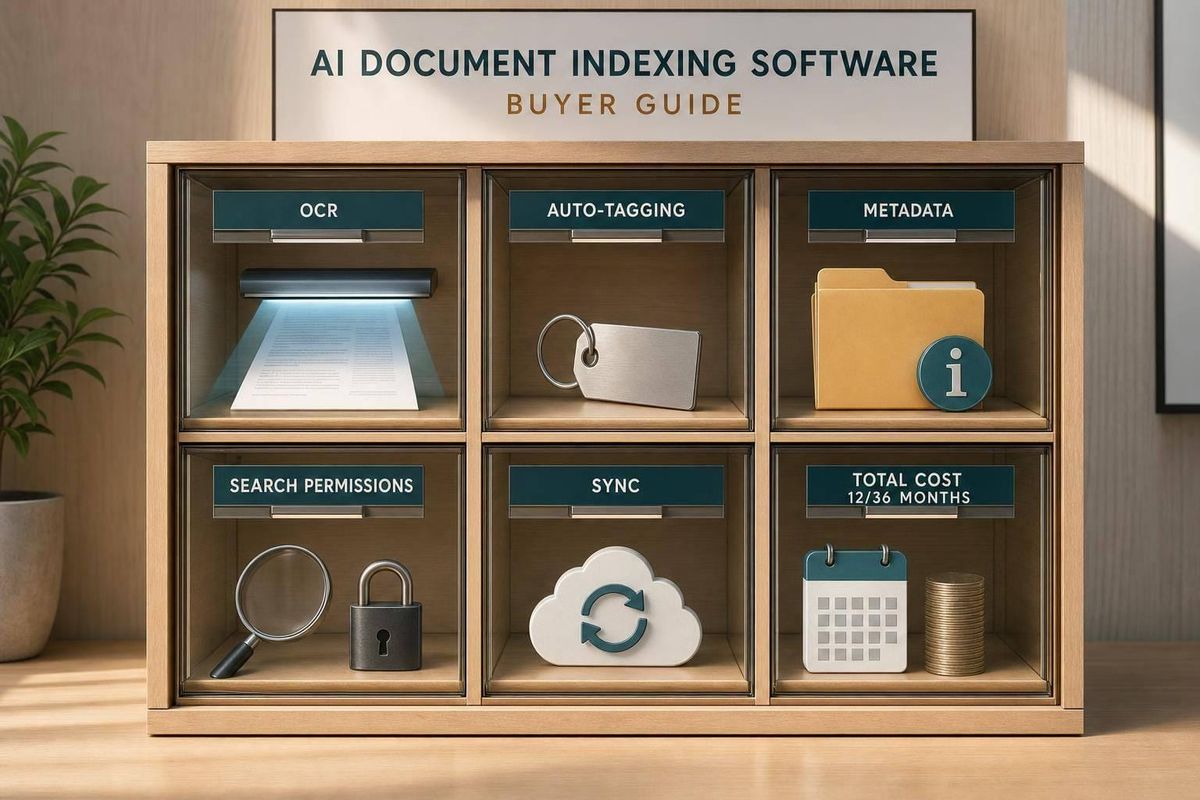
Most teams do not lose time storing documents. They lose time trying to find them. If I were buying AI document indexing software today, I would focus on five things first: how files are indexed, OCR accuracy, tag and metadata controls, search permissions, and total cost at 12- and 36-month volume.
Here’s the short version:
- I would match the indexing method to the file type:
- Full-text for text-heavy PDFs
- OCR for scans and image files
- Rules for fixed forms
- AI classification for mixed layouts
- Metadata for filtering, routing, and audits
- I would test OCR on 100–500 of my own documents, not vendor samples
- I would check whether tags include confidence scores and a review path
- I would make sure search respects permissions at query time
- I would price more than the base subscription:
- OCR can start near $1.50 per 1,000 pages
- Structured extraction can run $30–$70 per 1,000 pages
- Setup may add $1,000–$5,000 for small teams and $10,000–$50,000 for large rollouts
A few numbers matter right away. Even a 1% OCR error rate on 1,000 documents a day can mean about 10 bad reads daily. And if sync is slow, search can show old files or old permissions when your team needs current records.
Quick comparison
| Area | What I would check first | Why it matters |
|---|---|---|
| Indexing | OCR, rules, AI, metadata, full-text | Different file types need different handling |
| Accuracy | Field-level extraction results | Bad reads create manual cleanup |
| Search | Filters, ranking, permission-aware results | Teams need the right file fast |
| Sync | Real-time vs. batch updates | Old index data causes mistakes |
| Cost | Volume, pages, connectors, review labor | Base price is only part of the bill |
If I had to boil this guide down to one point, it would be this: pick the tool that stays accurate, searchable, and current as document volume grows - not just the one that looks cheap in a demo.
Stop Wasting Hours Searching for Files - AI Document Indexing Explained
sbb-itb-fd683fe
How Indexing Works and Which Method Fits Your Documents
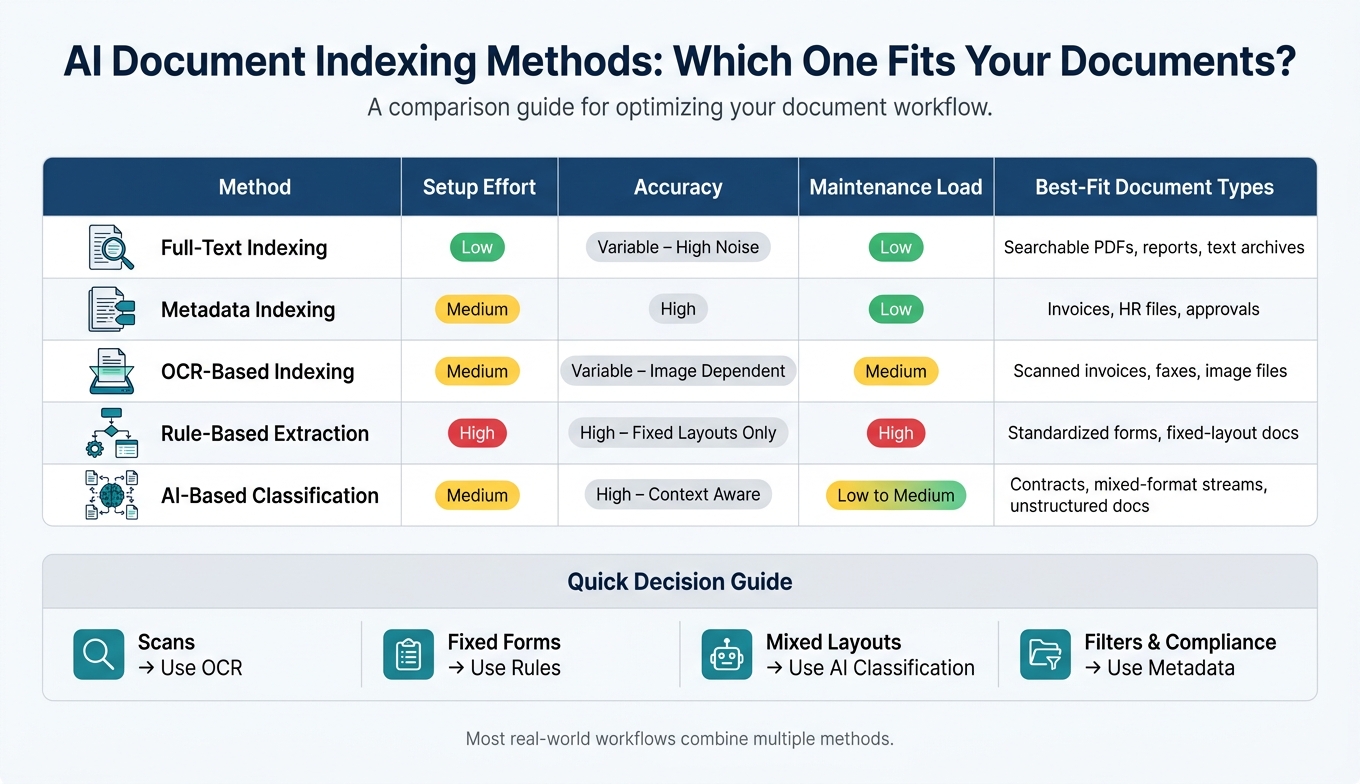
AI Document Indexing Methods: Quick Comparison Guide
No single indexing method works for every document type. In live document flows, you’re usually dealing with a mix: scanned invoices, digital contracts, HR forms, and email attachments. That means the right method depends on how each file comes in and how people need to find it later.
For live flows, the best option is the one that makes new files searchable without manual cleanup. From there, the next step is pretty simple: figure out whether your files need OCR, rule-based extraction, or AI classification before search works the way it should.
Full-Text, Metadata, OCR, Rules, and AI Extraction Explained
Full-text indexing makes every word searchable. It’s fast to set up and works well for digital PDFs, reports, and email archives where people search by keyword. The tradeoff is noise. If a file is packed with repeated legal text or boilerplate language, search results can get messy.
Metadata indexing lets users search by structured fields like date, department, invoice number, or approval status. It takes more planning upfront, but once those fields are set, retrieval is precise and consistent. This is the backbone of approval, audit, and compliance workflows.
OCR-based indexing is the bridge for image-heavy documents. Scanned invoices, faxed forms, and paper records are just pixels until OCR turns them into machine-readable text. If a file already has embedded text, skip OCR. Direct indexing is faster and more accurate. OCR also depends a lot on scan quality and language settings, so it adds processing overhead and sometimes cleanup work.
Rule-based extraction uses fixed patterns, template positions, or regular expressions to pull specific fields from standard layouts. It works very well for forms that rarely change. But here’s the catch: if a vendor changes a template, the rule can fail, and someone has to fix it by hand.
AI-based classification uses machine learning to read document content and assign labels like "Master Service Agreement", "NDA," or "Onboarding Form" without relying on rigid templates. It handles layout changes well and can pull key fields from unstructured text. It works best when it’s trained on sample documents that match what your team sees every day, and when it’s updated as those document types shift.
| Indexing Method | Setup Effort | Accuracy | Maintenance Load | Best-Fit Document Types |
|---|---|---|---|---|
| Full-Text | Low | Variable (high noise) | Low | Searchable PDFs, reports, text archives |
| Metadata | Medium | High | Low | Workflow docs (invoices, HR files, approvals) |
| OCR-Based | Medium | Variable (image-dependent) | Medium | Scanned invoices, faxes, image-based files |
| Rule-Based | High | High (fixed layouts only) | High | Standardized forms, fixed-layout documents |
| AI-Based | Medium | High (context-aware) | Low to medium | Contracts, mixed-format streams, unstructured docs |
How These Methods Work in Real Document Workflows
In practice, these methods usually work together. A scanned invoice might go through OCR first, then extraction, then metadata indexing for payment status and approvals. A digital contract can skip OCR, but it may still need AI classification and metadata for the counterparty, date, and renewal terms.
A simple way to think about it:
- Use OCR for scans
- Use rules for fixed forms
- Use AI for mixed layouts
- Use metadata for filters, reporting, and compliance
That choice shapes the next layer too: how much cleanup OCR, auto-tagging, and metadata rules can take off your team’s plate in day-to-day work.
OCR, Auto-Tagging, and Metadata Rules That Cut Cleanup Work
The next issue is simple: how much cleanup is left after the system does its job. Every bad read or wrong tag creates extra work. It slows routing, makes search messy, and drags out approvals.
What Good OCR Support Should Handle
Modern OCR can do a solid job on clean text. But once scan quality drops, accuracy drops with it. That’s why you need to test it on your own files before you buy anything. A 1% error rate across 1,000 daily documents still adds up to about 10 errors a day - wrong totals, misread IDs, or pages that don’t stay merged correctly.
At a minimum, the system should support:
- Scanned PDFs, TIFF/PNG/JPEG files, rotated pages, low-quality scans, tables, columns, form fields, and multi-page files
- Image preprocessing like deskewing, denoising, and contrast adjustment, plus character- or word-level confidence scores
Don’t just test clean samples from the vendor. Put the OCR engine through your worst files before purchase. Use low-resolution scans, rotated pages, mixed layouts, and multi-page files. Then measure field accuracy, correction time, and processing speed.
Once the text is readable, the next step is just as important: can the system label documents correctly without someone hovering over it all day?
How to Evaluate Auto-Tagging Quality
Auto-tagging should do three things well: identify document type, pull key entities, and apply controlled tags. When those parts work together, staff spend a lot less time typing field values or picking tags by hand. When they fail, documents land in the wrong folders and search results start to feel hit-or-miss.
Focus on per-tag confidence scores and threshold controls. A good setup should:
- Auto-apply tags above a high-confidence threshold
- Send mid-range confidence documents to human review
- Flag low-confidence cases for manual handling
Review screens should make that process easy. Staff should be able to see the document, the suggested tags, the confidence scores, and the text that triggered each tag.
You should also confirm that reviewer corrections feed back into the model. With active learning, the system gets better over time as people fix edge cases. That matters a lot as document volume climbs, because it cuts the review queue instead of letting it snowball.
Those tags stay useful only if metadata rules keep the field values clean and consistent.
Metadata Governance Features to Require
Auto-tagging sorts documents. Metadata governance keeps the index usable as volume grows. Without it, free-text fields fill up with spelling variations, required fields get skipped, and filters stop giving steady results.
| Governance Feature | Why It Matters |
|---|---|
| Required Fields | Prevents critical metadata from being left blank before indexing. |
| Controlled Vocabularies | Reduces spelling variants and inconsistent labels. |
| Validation Rules | Catches bad dates, amounts, and ID formats before indexing. |
| Default Values | Cuts manual entry for predictable fields. |
| Master Data Sync | Keeps names, IDs, and codes aligned with source systems. |
| Audit Trails | Shows who changed what and when, which supports compliance and dispute resolution. |
For most U.S. teams, the top priorities are required fields, controlled vocabularies, validation rules, and master data sync on the small set of fields that drive search and approvals. For invoices, that usually means vendor name, invoice number, invoice date, total amount (USD), and status. For contracts, it means effective date, expiration date, parties, and renewal terms.
Validation rules should match the formats your team already uses. Dates should follow MM/DD/YYYY. Amounts should be positive numbers. IDs should match a set pattern. If a value fails validation, the document should be held for correction before indexing.
Clean metadata is what makes search filters, routing, and reporting work later.
Search, Retrieval, and Integration Requirements
Clean metadata is only half the job. People still need to find the right document fast - and just as important, they should only see documents they’re allowed to see. So the search layer has to do two things at once: return strong results in seconds and enforce permissions at query time.
Search Filters That Matter in Day-to-Day Use
At a minimum, the system should support filters for date range, document type, owner, department, document status, source system, file format, and custom metadata fields, with permission-aware filtering so restricted documents never appear in results.
A good baseline is 5–10 standard filters used across the app, plus 3–5 role-specific filters for each team. That keeps the setup practical while still matching how people work day to day. For legal, that might mean "Matter type" and "Jurisdiction." For finance, it could be "Vendor name" and "Invoice status." The point is simple: teams should be able to search the way they already think, without needing custom development.
Search speed matters just as much as filter coverage. Most queries should come back in seconds, even when the repository holds hundreds of thousands of documents. During a trial, use a test corpus that reflects finance, HR, and operations. Then run scripted searches such as "find the most recent signed MSA with Customer X" or "find all policies updated after January 1, 2024." Track how often the correct document shows up in the top 3 results.
Filter coverage sounds good on paper. It only pays off when the right file appears fast.
Advanced Retrieval Controls Worth Paying For
Once the core filters are in place, a few added retrieval features can make a big difference at scale.
| Feature | What It Does | When It Matters |
|---|---|---|
| Semantic search | Matches query meaning, not just keywords | Useful when staff use informal phrases instead of official document titles |
| Hybrid keyword-plus-semantic search | Combines keyword filters with semantic re-ranking | Best for heterogeneous repositories with inconsistent naming conventions |
| Relevance tuning | Lets admins boost fields like "status = final" over drafts | Useful when default ranking doesn't reflect business priorities |
| Saved views | Reusable filter combinations applied with one click | Cuts repetitive setup for recurring work queues |
| Duplicate handling | Collapses identical or near-identical files into one result | Reduces clutter and surfaces the authoritative version |
| Access-aware ranking | Only ranks documents the user can access | Prevents hidden files from skewing results |
One detail matters here: access-aware ranking should remove documents the user cannot access before ranking happens. If blocked files shape the ranking behind the scenes, the result set can get distorted.
These controls also depend on one thing many teams overlook: the index has to stay current as files and permissions change.
Storage Connections and Sync Behavior to Verify
Connectors decide whether search stays up to date. Search quality depends on fresh files, current permissions, and sync that works the way the vendor says it works. Once search looks good in a demo, check the feeds that keep the index current.
Modern AI document indexing tools should connect to cloud storage like Google Drive, OneDrive, and Box, document management systems, email platforms for attachment ingest, network shared folders, and line-of-business tools through APIs and webhooks.
It’s also worth checking for real-time sync, not just scheduled batch updates. Real-time connectors usually rely on webhooks or streaming APIs. Batch crawls, by contrast, can leave stale results sitting in search during time-sensitive work. In contract approvals or incident reporting, that delay can cause problems fast: someone finds a document, acts on it, and only later learns it was out of date. Ask vendors for documented sync latency by connector type. Then test it yourself by uploading a file to a connected drive and timing how long it takes to appear in search.
Permission inheritance needs the same level of scrutiny. When access changes at the source, the index should update on its own. A simple test works well here: create users with different roles, share and unshare folders, and confirm that search results shift within a reasonable sync window. Access changes should show up at query time, not just when the file was first ingested.
Ask vendors for certified connectors, source limits, and who maintains each connector.
Cost Tradeoffs and the Final Buyer Checklist
What Drives Total Cost in the U.S. Market
Once search, OCR, and permissions work at your document volume, price becomes the next screen. And this is where a lot of buyers get tripped up.
The subscription fee is only one piece of the bill. In the U.S. market, total cost usually comes from document volume, OCR pages, extraction difficulty, API usage, connectors, storage, and review labor - not just the base plan.
Plain OCR costs about $1.50 per 1,000 pages, while structured extraction for forms and tables can climb to $30–$70 per 1,000 pages, depending on the vendor. Then there are the extras people often miss: annual price escalators, state sales tax where it applies, and implementation fees. Those setup costs can land around $1,000–$5,000 for small teams and $10,000–$50,000 for larger enterprise rollouts.
That’s why it helps to model three views in a spreadsheet:
- current usage
- a 12-month forecast
- a 36-month forecast
A simple exercise like this can save you from a nasty surprise later.
Use these tiers to line up expected volume with deployment effort and budget.
| Cost Tier | Typical Volume | OCR Support | Sync Frequency | Admin Load | Budget Implication |
|---|---|---|---|---|---|
| Low-cost | Up to 50,000 docs/month | Basic; struggles with complex layouts | Daily or hourly batch | Pure SaaS, minimal IT | Smaller teams and low-risk workflows |
| Moderate-cost | 50,000–500,000 docs/month | Solid; configurable quality settings | Near-real-time for key systems | Managed SaaS; some configuration | Automation and growth headroom |
| Enterprise-grade | Millions of docs/month | High throughput; advanced language support | Real-time, event-driven | Complex; dedicated admin and DevOps | High-volume workflows with stricter security needs |
Buyer Checklist Before Signing a Contract
Next, test those assumptions on your own files and workflows before you sign anything. Vendor demos can look smooth. Your messy PDFs, scanned forms, and shared drives are the part that tells the truth.
Use this checklist to test the same factors that shape accuracy, search performance, and cost in live document flows:
- Index freshness: Upload a live file to a connected drive and time how long it takes to appear in search.
- OCR accuracy: Test 100–500 real documents and score field-level accuracy.
- Auto-tagging precision: Measure correct, missed, and incorrect tags on your actual document types.
- Metadata governance: Confirm required fields block bad data before indexing.
- Permission sync: Change access at a source folder and verify search updates within the agreed window.
- Integration uptime SLAs: Ask whether connector uptime commitments are backed by service credits. For critical workflows, ask for typical and worst-case latency data.
- Total cost at forecasted volume: Run 12-month and 36-month usage estimates through the vendor calculator.
Conclusion: Choose the Tool That Stays Accurate as Volume Grows
The right AI document indexing tool is the one that stays accurate, current, and affordable as volume grows. A tool that looks low-cost at a smaller scale can get expensive fast once usage climbs. Connectors, storage, extraction, sync, implementation, and review all shape what you’ll end up paying, so they need to be part of the contract review from day one.
FAQs
How do I choose the right indexing method for my files?
Start by reviewing your document flow requirements, including compliance rules, retention policies, and WORM storage. That step sets the ground rules before you look at software.
For automation, focus on tools that pair OCR with intelligent document processing. The goal is simple: pull data from files and sort it in the right way without turning your workflow into a mess.
If search and retrieval are the top priority, large language models can help with context-aware tagging while still working within constrained taxonomies. That matters when you need results that feel smart but still stay inside your filing structure.
Test each option with real-world files, not just demo samples. Check accuracy, integrations, and how well the setup fits the way your team already works.
What OCR accuracy is good enough for daily use?
For day-to-day document processing, aim for at least 95% first-pass accuracy. That level helps cut down on manual fixes and keeps work moving without constant cleanup.
Some top-end AI systems can hit 98% to 99%, but those numbers depend a lot on document quality. A clean scan is one thing. A blurry, crooked, or low-contrast file is another story.
Handwritten documents are tougher. Accuracy often falls to 70% to 90%, which is a pretty big gap. That’s why it’s smart to test the software with your own sample documents before you commit.
How can I estimate the real long-term cost?
Estimate the real long-term cost by looking at total cost of ownership, not just the monthly or annual subscription price. A tool can look cheap at first glance and still cost far more once all the extra work shows up.
Start with an audit of your current document flow. That gives you a clear picture of what manual processing costs you today, where time gets burned, and which steps create the most drag.
Then factor in the full cost picture:
- Implementation and setup
- Training
- Integration engineering time
- Ongoing maintenance
- Data-related costs such as storage growth, retrieval fees, usage-based charges, and premium add-ons
One line item people often miss is maintenance. In many cases, it runs 15% to 20% of the initial investment per year.
Related Blog Posts
- Checklist for Choosing Resume Parsing Software
- Top 7 Cloud Archiving Tools for Compliance
- Ultimate Guide to AI Expense Management Tools
- 10 Key Features in Data Catalog Software
More on StackRundown
Continue on the AI Tools hub, or read next: