Startup Workflow Automation Tools: 2026 Buyer Guide
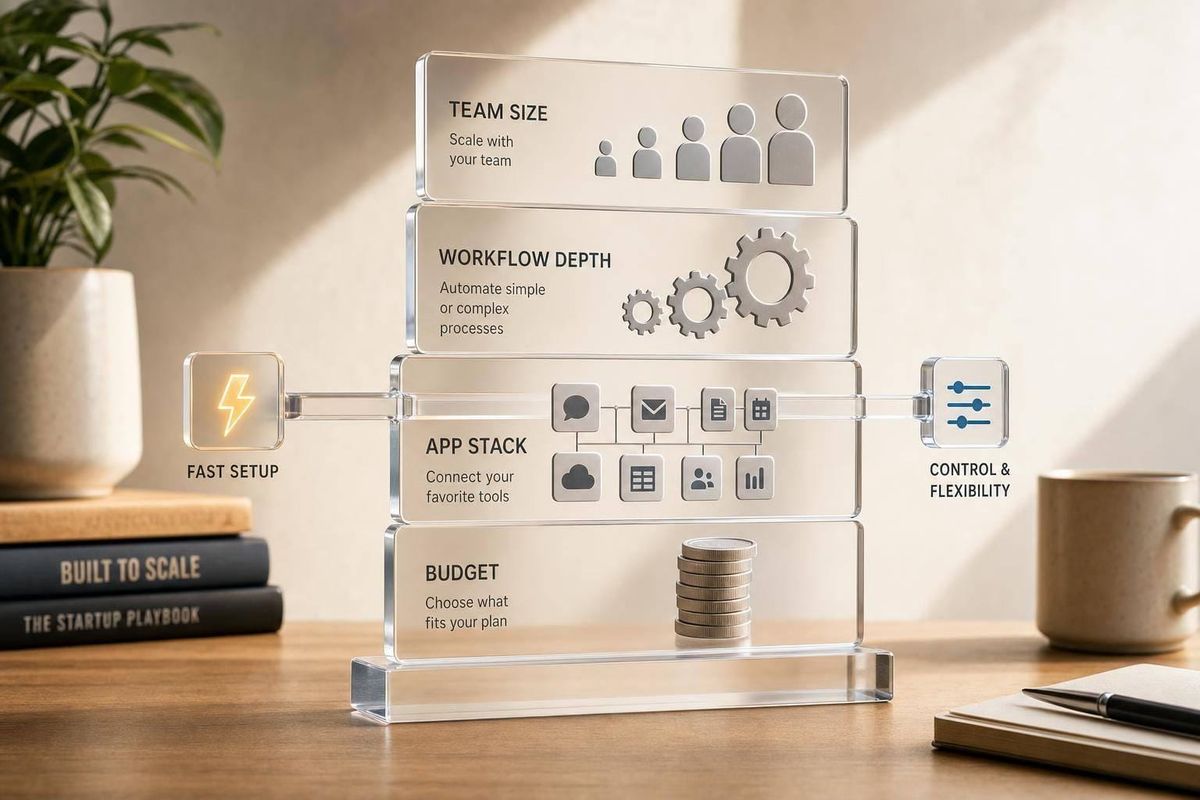
Choose by team size, workflow depth, app stack, and budget—fast setup wins for nontechnical startups; technical teams need control.

If I had to cut this guide to one answer, it would be this: Zapier is the best pick for fast setup, Make is the best pick for high-volume automation on a tight budget, n8n is the best pick for technical teams, and Asana, ClickUp, monday.com, and Airtable make more sense when you need work management first and automation second.
Here’s the short version:
- Zapier: best if I want automations live fast and need a huge app library
- Make: best if I need more workflow logic and lower cost per run
- n8n: best if I want custom API control or self-hosting
- Airtable: best if I want a data-first workspace with light automation
- monday.com: best if I want team visibility and light cross-tool automation
- ClickUp: best if I want tasks, docs, chat, and automations in one place
- Asana: best if I want clean rollout, clear ownership, and light rules
- Power Automate: best if my stack is built around Microsoft 365 or Dynamics 365
A few numbers make the tradeoff clear:
- Zapier starts at $19.99/month for 750 tasks
- Make starts at about $10.59/month for 10,000 operations
- Zapier lists 8,000+ integrations
- Asana has 300+ native integrations
- Zapier Copilot built common workflows right on the first try 80% of the time in the cited testing
So the buying decision is simple:
- Pick by team size
- Pick by workflow depth
- Pick by app stack
- Pick by monthly spend
- Pick by how much setup and maintenance your team can handle
If I were choosing today, I’d start by testing 2–3 workflows I already run. That shows me more than any feature page.
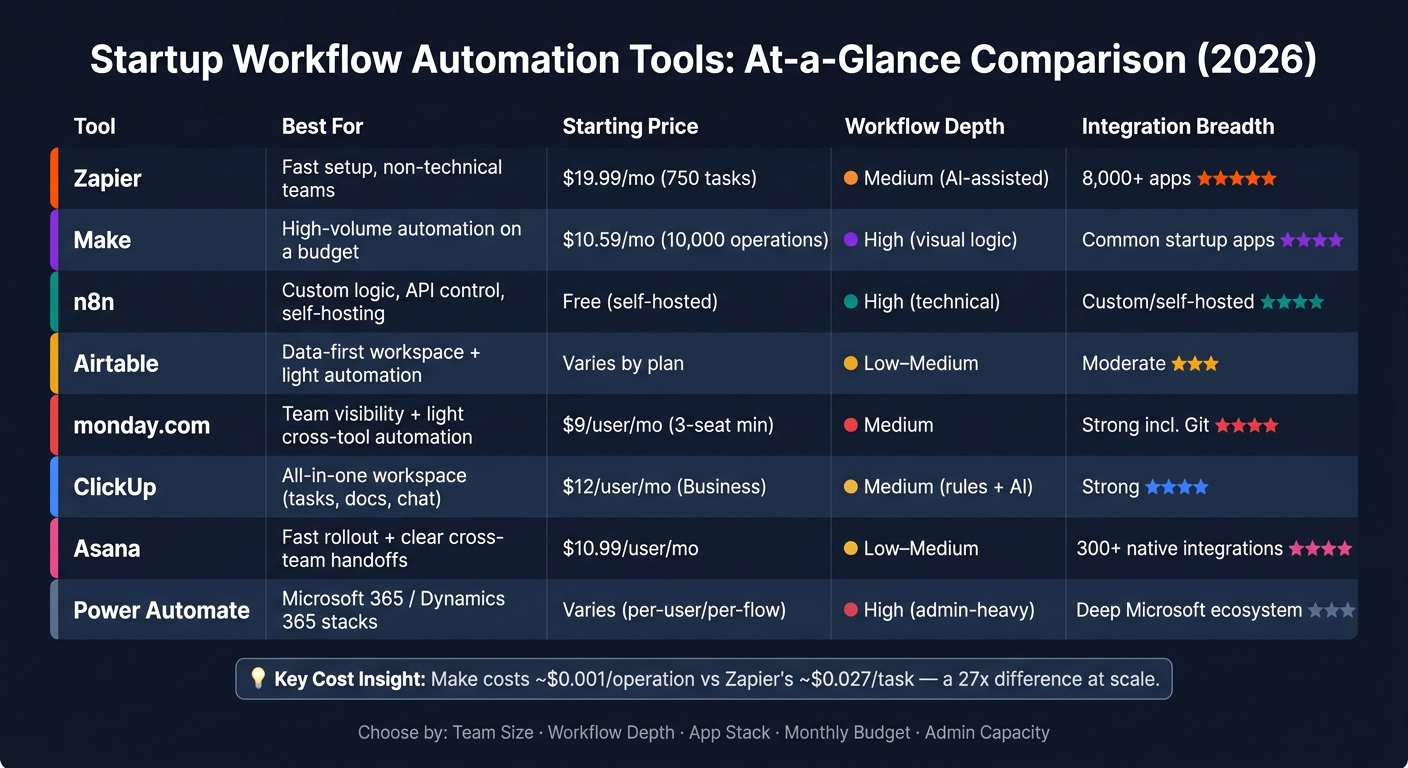
Startup Workflow Automation Tools Compared: Pricing, Features & Best Fit (2026)
Best Workflow Automation Software in 2026 (5 Tools Compared)
sbb-itb-fd683fe
Quick Comparison
| Tool | Best For | Main Tradeoff | Starting Price |
|---|---|---|---|
| Zapier | Fast setup, broad integrations | Higher cost as usage grows | $19.99/month |
| Make | High-volume automations, visual logic | More setup time | $10.59/month |
| n8n | Custom logic, API-heavy flows, self-hosting | Needs technical help | Free self-hosted |
| Airtable | Data + light workflows in one workspace | Not built for deep branching | Varies by plan |
| monday.com | Team tracking and light automation | Seat costs add up | $9/user/month |
| ClickUp | All-in-one workspace | Heavier setup | $12/user/month on Business |
| Asana | Cross-team rollout and clear handoffs | More workflow features need paid tiers | $10.99/user/month |
| Power Automate | Microsoft-first workflows, approvals, RPA | More admin work | Varies |
Bottom line: if you want the shortest path to live automations, start with Zapier. If cost per run matters more, look at Make first. If your team writes code and wants control, check n8n. If the bigger issue is how work gets tracked across the company, compare Asana, ClickUp, monday.com, and Airtable before you buy.
That’s the frame I’d use before getting into the full breakdown.
1. Zapier
If your team cares most about getting automations live fast without a lot of setup work, Zapier is the default pick. It’s best for low-admin automation and quick launch, which is why so many teams start here.
Its standout feature in 2026 is Zapier Copilot. You describe a workflow in plain English, and it builds the automation for you. In testing, Copilot generated standard workflows on the first try 80% of the time, with an average runtime of about 1.8 seconds.
Zapier also has a huge app library. It connects to 8,000+ apps and ran 2,100 automations with a 99.4% success rate. That makes it a strong option when you want broad app support and don’t want to spend days wiring things together.
The downside is price. The Professional plan starts at $19.99/month, billed annually, for 750 tasks. That task-based pricing can get expensive fast if your usage climbs. And the usual 5-minute run interval can be a limit if you need something closer to real-time.
Best fit: Early-stage teams that care more about speed of setup than cost per task, run moderate automation volume, and want as little admin work as possible. Zapier fits best for teams staying under 750 tasks per month.
Use Zapier when fast launch and low admin work matter more than deep logic or low per-task pricing.
2. Make
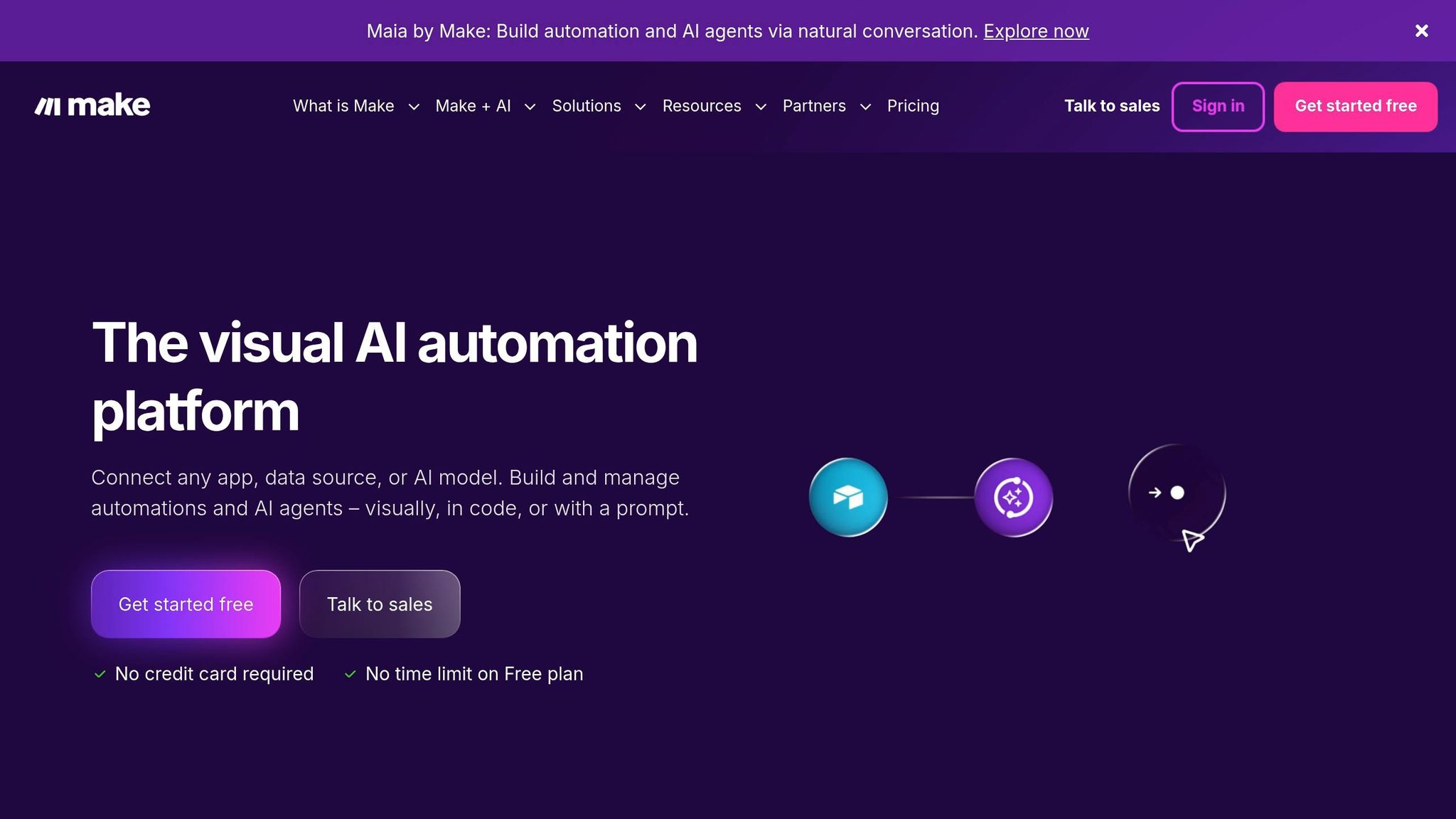
Make is a strong pick for startups that need a lot of automation without burning through cash. Its Core plan includes 10,000 operations for $10.59–$12/month when billed annually, while Zapier offers 750 tasks for $19.99/month. Put side by side, that's about $0.001 per operation versus $0.027 per task. Once your usage starts climbing, that gap adds up fast. For lean teams, that can be the difference between staying on budget and outgrowing a tool too soon.
Make runs on a visual workflow builder. That's a big plus if you need branching logic or more involved automations. You can map things out and build flows that go well beyond basic “if this, then that” setups. The catch? It usually takes more time to set up, and nontechnical teams may find the learning curve steeper.
Its credit-based pricing model also needs attention. If no one is watching usage, credits can disappear faster than expected and push your team into a higher tier earlier than planned. So before you upgrade, it's smart to keep a close eye on how many operations your workflows are using.
Best fit: startups with some technical comfort that need high automation volume on a tight budget. The free tier gives you 1,000 operations per month and 2 active scenarios, which makes it a good way to try the builder before paying for more. If your team wants even more hands-on technical control, n8n is the next option to look at.
3. n8n
If Make feels strong but still a bit too locked into templates, n8n gives teams more room to build things their own way.
It’s the most technical option in this group. That makes it a good match for startups that need custom logic, tight API control, or self-hosting. As usage grows, n8n can often bring down the cost per workflow. The tradeoff is simple: you get more control, but your team also takes on more upkeep.
Best fit: startups with technical staff, custom workflow needs, and growing automation volume.
Next, compare tools built for broader team workflow management, not just automation depth alone.
4. Airtable
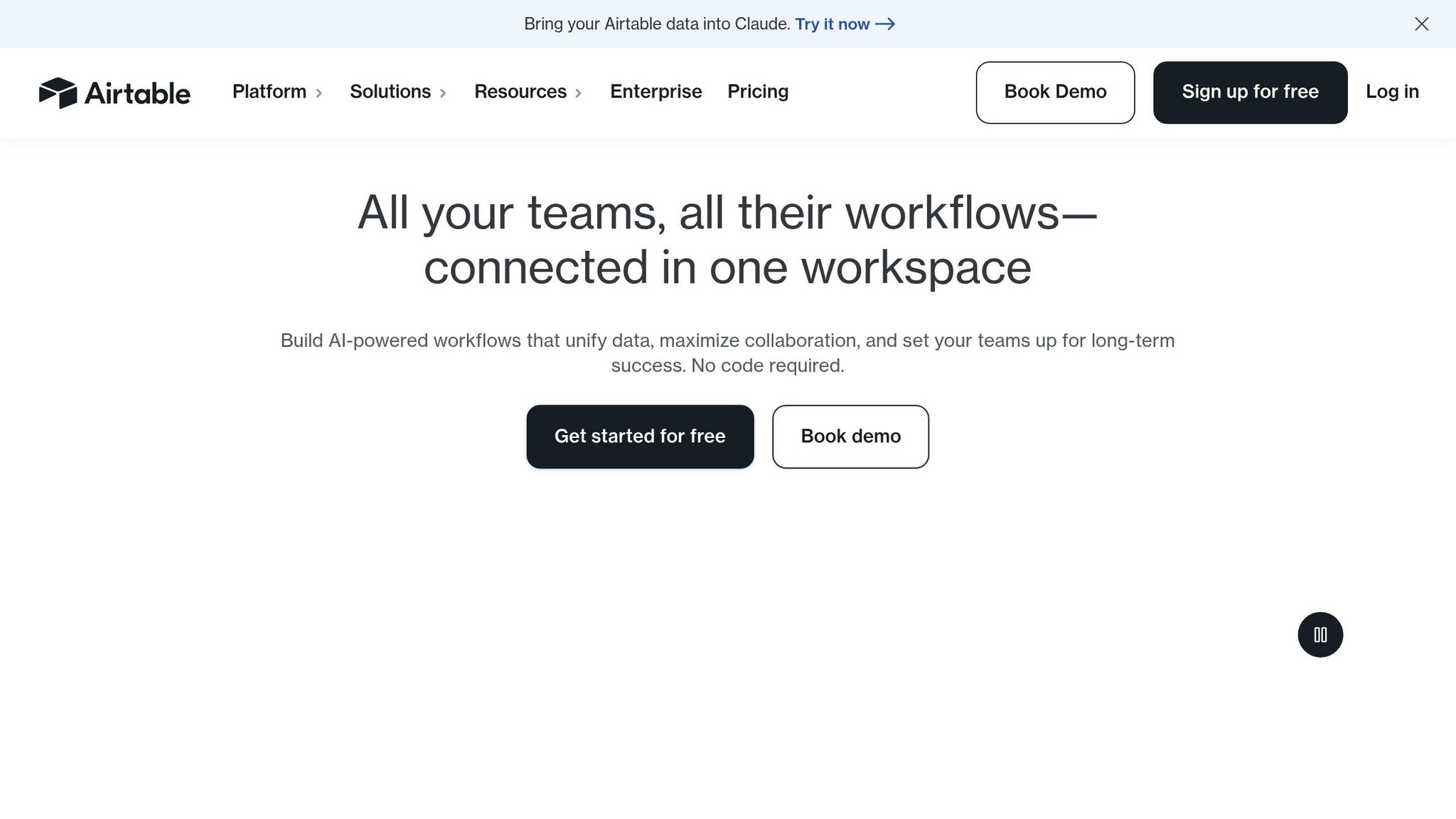
Airtable sits in the middle of two worlds: part database, part workflow tool. You get forms, automations, approvals, dependencies, interfaces, APIs, and integrations in one workspace. That setup works well for teams that want structure first and automation after that.
Compared with more technical automation tools, Airtable is better as a workspace than as a workflow engine. It can handle light workflows without much trouble. But once you get into complex branching or deeper API logic, you’ll still need a separate automation tool.
Costs can climb fast as you add seats, AI, advanced automations, and premium features. On top of that, admin work, integrations, and migration can add extra overhead.
Best fit: early-stage startups that want one workspace for data and light internal workflows, not deep automation.
5. monday.com
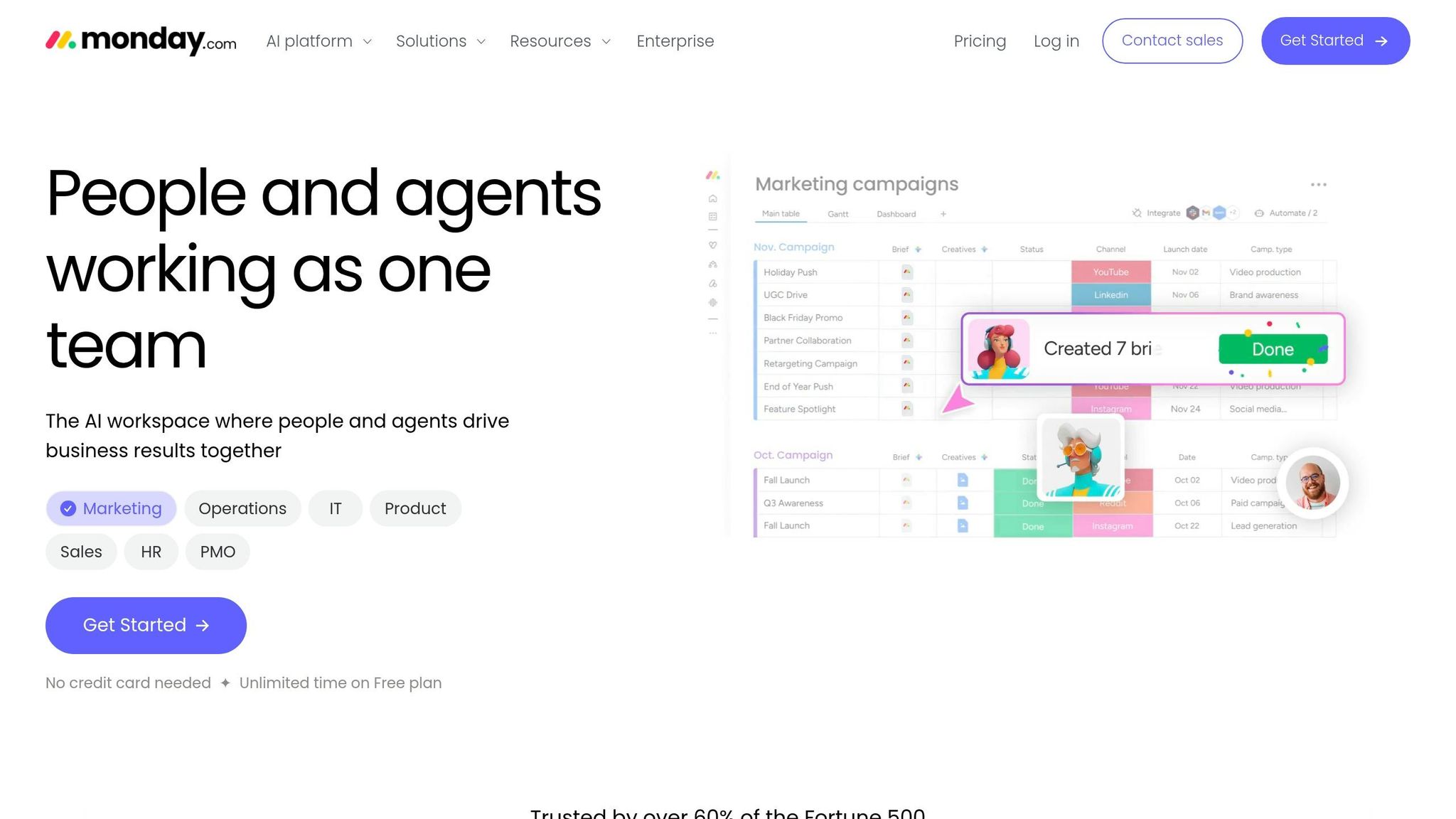
After Airtable’s more structured setup, monday.com puts the spotlight on visible team execution. It’s a visual work management platform that works best as a shared hub for coordinating work across teams, not as a heavy workflow engine. That makes it a strong match for small to mid-size startups that want clear visibility across functions and don’t mind a bit of admin work.
It covers routine automations, AI standups, summaries, and natural-language workflow building. For engineering-heavy teams, it also offers two-way sync with GitHub, GitLab, and Bitbucket, plus a VS Code extension. That means pull requests can connect straight to cards, which is handy when product and engineering need to stay in lockstep.
Pricing starts at $9 per seat/month for the Basic plan, billed annually. Pro adds hierarchy, time tracking, and agile reporting and Gantt charts at $20 per seat/month. Enterprise includes advanced analytics and 250,000 automation actions with custom pricing. For a 10-person startup on Pro, the cost comes to $2,400/year. The catch is simple: seat-based pricing can climb fast as your team gets bigger.
The main watch-out is admin overhead. monday.com has a lot going on, and new users may find the interface crowded at first. Boards, automations, and dashboards also need setup before the system starts to feel smooth. So the tradeoff here is pretty clear: you get more control over coordination, but not deeper automation power.
Best fit: startups that want a shared workspace for project tracking, sprint management, and light cross-tool automations, especially teams with developers who want native Git integrations built in.
Teams that need deeper task and doc management should compare it with ClickUp next.
6. ClickUp
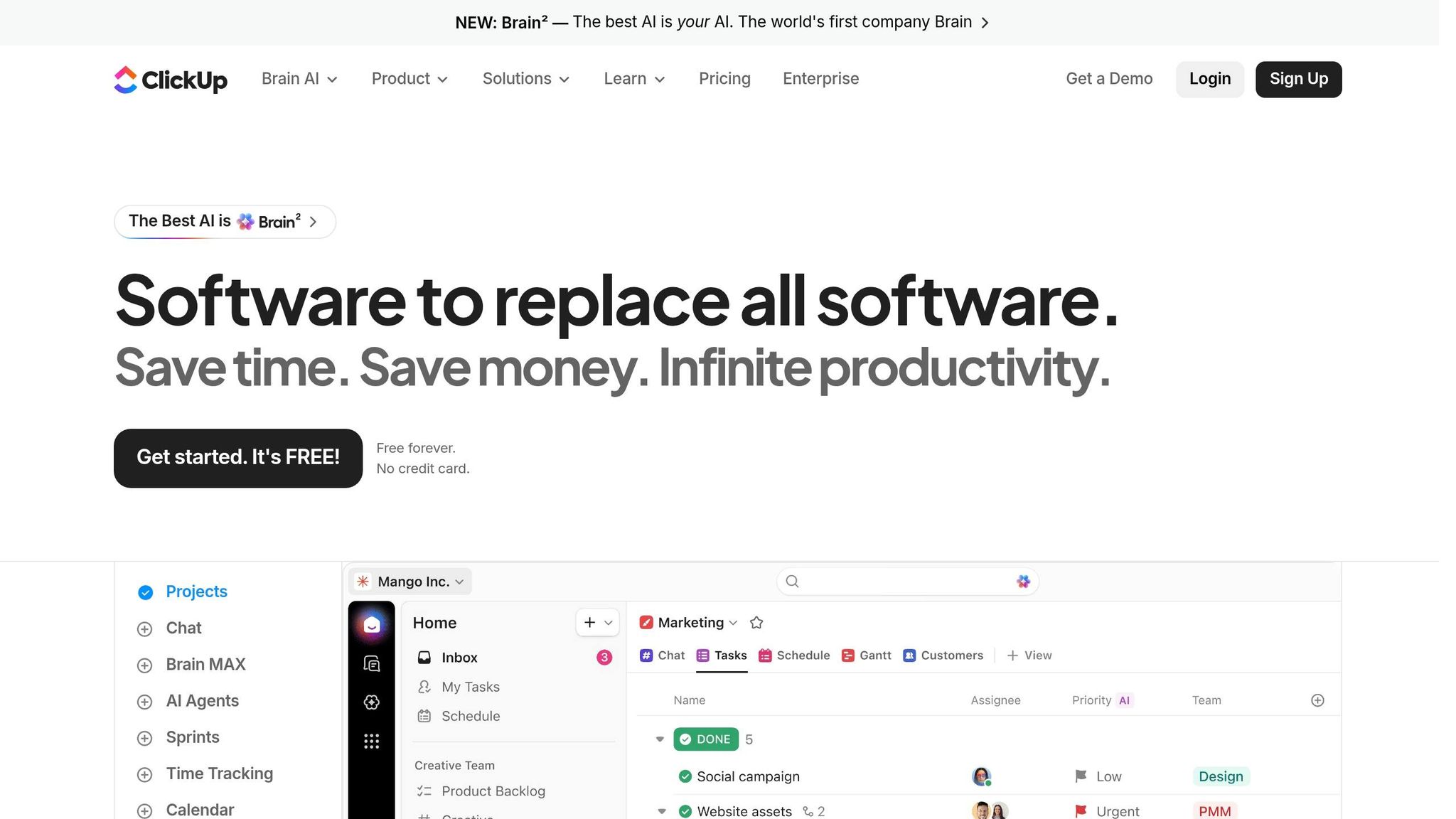
ClickUp is built around one big idea: replace a pile of separate tools with one workspace. It brings tasks, docs, chat, whiteboards, and goals together so teams can cut down on app sprawl. The upside is clear. The catch is clear too: once you put that much in one place, setup gets heavier and there are more choices to sort through.
Its automation limits change a lot by plan. The free tier gives you basic automation. The Business plan ($12/user/month, billed annually) includes 5,000 automation actions, and Enterprise goes up to 250,000 actions with custom pricing. On the AI side, ClickUp Brain adds summarization, Q&A, and task handoffs. The Everything AI add-on adds Notetaker and agents for $28/user/month.
That pricing picture matters. The cost isn’t just the seat price. AI add-ons and the time spent setting everything up can add up fast. A tool that looks cheaper at first can end up costing more once you factor in admin time and extra features.
ClickUp also includes 15+ views such as Kanban, Gantt, Timeline, and Table. That gives teams a lot of freedom in how they look at work. Some people love that kind of flexibility. Others find it becomes one more layer to manage. So the main question is simple: do these features replace other tools, or do they just make the stack more crowded?
The biggest tradeoff is setup time. ClickUp packs in a lot, and shaping it around your actual workflow can take a lot of effort up front. During a trial, it’s worth checking whether docs, chat, and tasks can sit in one workflow without adding extra admin work.
Best fit: startups that want to reduce app sprawl and are willing to spend more time on setup for a more unified workspace, especially teams that want flexible views and AI-assisted task management in one platform.
If fast rollout matters more than deep setup and all-in-one tooling, compare it next with Asana, which is often simpler to get started with.
7. Asana
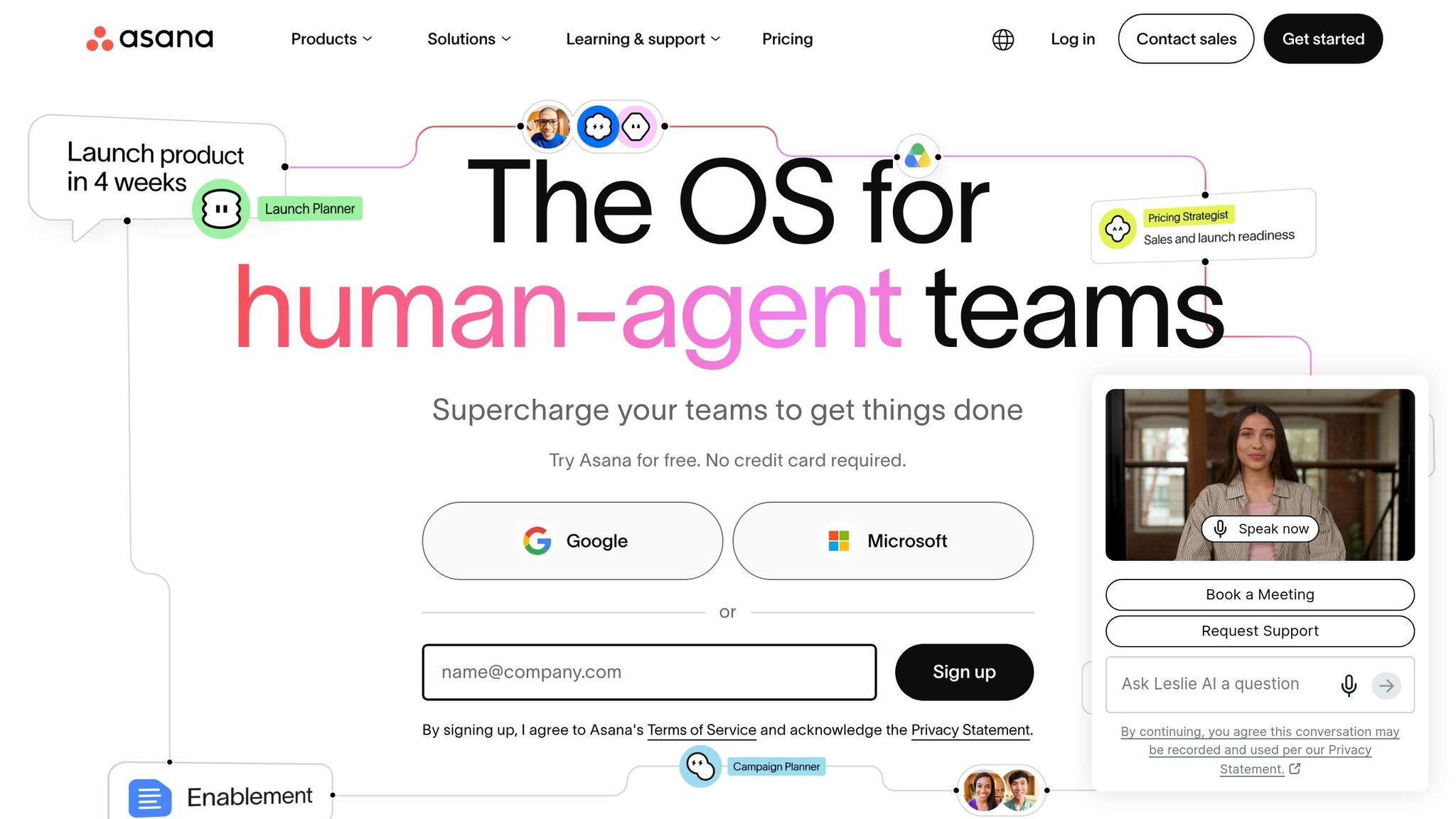
Asana is built for fast rollout and clear handoffs, which makes it a strong pick for startups that want team alignment without a lot of setup. You can get going from day one without piling extra work onto an admin.
It works best for cross-functional work. Think marketing, product, and IT teams all moving toward the same goals without stepping on each other’s toes. Asana’s Workflow Builder and custom Rules help cut down repetitive work, like task assignments and status updates. It also gives teams several ways to track work, including Timeline, List, Calendar, Workload, and Board views.
One thing that helps here: Asana comes with 300+ native integrations. That matters if your startup already runs on tools like Slack, Google Workspace, Jira, or similar apps. Instead of forcing a whole new way of working, Asana can slot into what your team already uses.
There is a catch. More advanced automation and deeper workflow logic sit behind paid tiers, with plans starting at $10.99/user/month.
During a trial, use Workflow Builder, Rules, and Workload on your actual handoffs and capacity planning. That’s the easiest way to see if Asana cuts manual work and gives your team what it needs to make growth calls with more confidence.
Best fit: cross-functional startups that need fast setup, clear ownership, and light automation. Microsoft-first teams that want deeper admin control should compare it with Power Automate next.
8. Microsoft Power Automate
Microsoft Power Automate makes the most sense for startups that already run on Microsoft 365 or Dynamics 365. It slips into existing Microsoft workflows without much friction. So while it may not be the first pick for fast, low-touch automations, it works well for more controlled internal processes. It’s a strong match for teams with Microsoft-heavy stacks and enough ops support to keep things running smoothly.
Compared with lighter automation tools, Power Automate gives you deeper control. It supports multi-step logic, approvals, branching, RPA, webhooks, error handling, and APIs. That matters most when your workflows involve approvals, policy checks, or other compliance-sensitive steps.
The tradeoff is admin work. Governance and security controls can take a lot of setup, and more complex use cases may need dedicated support. If you don’t have a technical ops lead, setup and governance can turn into the main bottleneck.
Pricing can get a bit tricky too. Power Automate uses per-user and per-flow pricing, and premium connectors can push up the monthly bill. That makes total spend less predictable than with simpler flat-rate tools.
Best fit: Microsoft-first startups that need deep workflow logic, approvals, RPA, or tight integration with Dynamics 365 and the broader Microsoft ecosystem - and have the admin capacity to run it.
Workflow Depth and App Integrations Compared
This section is about workflow depth, control, and app fit. The core choice comes down to this: how much depth your team needs versus how much setup and admin work it can live with.
Workflow complexity and multi-step logic
Zapier is the faster option. Make is the better pick for complex workflows.
Zapier’s AI Copilot helps non-technical team members build automations from plain-English prompts. It generates standard workflows on the first try 80% of the time. That makes it a good fit for teams that want to move fast without getting buried in setup.
Make gives you more room to build layered workflows. Its visual scenario builder handles detailed multi-step logic and branching at higher volume. If your process has lots of “if this, then that, but only if something else happened first” moments, Make is usually the stronger fit.
n8n goes deepest on control. It’s the strongest option for startups with custom logic needs and technical staff. You get more freedom, but you also need people who can handle that freedom.
Airtable works well for light internal workflows. But once branching starts to get messy, you’ll usually need a separate automation tool.
monday.com, ClickUp, and Asana land in the middle. They cover routine automations and rules-based triggers well, but they’re not built for deep logic support.
Webhooks, APIs, and technical control
For API-heavy startups, n8n stands out first.
It supports self-hosting, custom logic, and tight API control, with the lowest per-workflow cost at scale. For teams that want to shape workflows around their own systems instead of working around tool limits, that matters a lot.
Make is the next best option here. It offers flexible webhook support and visual branching, which gives teams a lot of control without forcing everything into code.
Zapier is easier for non-technical users, but it gives you less room for custom API work.
Microsoft Power Automate supports webhooks, multi-step logic, approvals, and RPA. That makes it the right fit for Microsoft-first teams that need compliance-sensitive workflows.
monday.com, ClickUp, and Asana offer moderate API access. That’s enough for most startup needs, but not for teams building custom integrations from the ground up.
Airtable covers basic API and webhook support. It fits structured data workflows better than deep automation.
Which app integrations matter most for startups
Raw connector count sounds impressive, but it’s not the whole story. What matters more is whether the app list matches your stack.
Zapier leads on breadth with 8,000+ integrations. That makes it the safest choice if your stack includes niche or less common tools.
Make covers the apps most startups use and does it at a lower per-operation cost.
n8n supports custom integrations and self-hosted connectors, which gives technical teams the most flexibility.
Airtable, monday.com, ClickUp, and Asana each have strong native integrations with tools like Slack, Google Workspace, and Jira.
Microsoft Power Automate goes deepest with Microsoft 365 and Dynamics 365, but outside that world, its fit is narrower.
That tradeoff gets easier to see when you line up workflow depth, integration breadth, and technical control side by side.
Comparison table: workflow depth and integration fit
| Tool | Best For | Complexity | Integration Breadth | Startup Stack Fit |
|---|---|---|---|---|
| Zapier | AI-driven setup speed | Medium (AI-assisted) | 8,000+ apps | Marketing/sales teams |
| Make | High-volume visual logic | High (visual scenarios) | Common startup apps | Ops-heavy startups |
| n8n | Custom logic and API control | High (technical) | Custom/self-hosted | Technical teams |
| Airtable | Structured data and light workflows | Low–Medium | Moderate | Early-stage, data-first startups |
| monday.com | Team coordination and visibility | Medium | Strong (incl. Git) | Cross-functional teams |
| ClickUp | All-in-one consolidation | Medium (rules/AI) | Strong | Cross-functional teams |
| Asana | Fast rollout and clear handoffs | Low–Medium | 300+ native integrations | Cross-functional teams |
| Microsoft Power Automate | Approvals, RPA, compliance workflows | High (admin-heavy) | Deep Microsoft ecosystem | Microsoft-first startups |
Next, compare these workflow choices against pricing and hidden costs.
Pricing, Hidden Costs, and Pros and Cons
How pricing models differ
List price doesn't tell the whole story. What matters more is how costs grow with workflow volume, team size, and admin effort.
The main divide is between usage-based tools and seat-based tools. Zapier and Make bill based on how many tasks or operations your automations run. monday.com, ClickUp, and Asana charge per user, with automation included in the license. n8n sits in its own lane: self-hosting can be free, but you still have to pay for servers and maintenance.
Usage-based tools often look cheap at first, then get pricey as volume climbs. Seat-based tools are easier to forecast at the start, but costs rise as your team adds people. Once automations are live, usage-based platforms can also bring connector fees and overages. That's why it's smart to model expected volume before you lock in a tool.
Hidden costs that affect total spend
List price leaves out most of the stuff that drives total spend.
- Premium connectors: Some Zapier integrations require a higher plan, and premium apps or tighter limits can push you into an upgrade.
- Overage charges: If workflow volume grows faster than planned, extra usage fees or hard limits can hit fast.
- AI add-ons: ClickUp AI add-ons cost extra. monday.com puts many AI features behind paid add-ons instead of including them in base plans.
- Seat minimums: monday.com requires at least 3 seats.
- Admin and maintenance time: Self-hosted n8n can cut license costs, but server bills, upkeep, and engineering time still count. Don't assume self-hosted means lower total spend.
- Ramp time: ClickUp usually takes 2–4 weeks for teams to reach full proficiency. That time has a labor cost, even if the sticker price looks low.
What to test during a free trial or pilot
After pricing, the next step is simple: find out whether the tool cuts manual work in your day-to-day process.
Run a small pilot with two or three workflows your team already uses. Build those workflows inside the product, then watch what happens. A tool can look great in a demo and still fall apart when your team has to use it under normal conditions.
Pay close attention to setup time. How long does it take a non-technical teammate to build a working automation from scratch? Then look at debugging. If a workflow fails, can someone find the problem fast, or are they stuck digging through vague error messages?
Permissions matter too. You want to know who can edit or turn off automations, and whether the system logs those changes. That becomes a lot more important once several people are involved.
Also test admin handoff. Have another teammate step in and edit or troubleshoot the workflow. If they can't do it without help, that's a labor cost that will keep showing up every time something breaks.
Documentation is another quiet cost driver. Thin docs usually mean more time in forums, more support tickets, and more waiting.
For Make, keep a close eye on credit usage during the trial. Its credit model can lead to surprise overages if nobody is tracking consumption closely.
Comparison table: pricing and cost drivers
| Tool | Pricing Model | Entry Cost (USD) | Scaling Trigger | Notable Hidden Costs |
|---|---|---|---|---|
| Zapier | Task-based | $19.99/mo (annual) | Task volume | High cost per task ($0.027–$0.04) |
| Make | Operation-based | $10.59/mo (annual); free plan includes 1,000 credits | Operation volume | Credit monitoring overhead |
| n8n | Self-hosted / cloud | Free (self-hosted) | Infrastructure costs | Server, maintenance, engineering time |
| Airtable | Seat-based | Varies by plan | Seat count and feature tier | AI and advanced automation behind higher tiers |
| monday.com | Seat-based | 3-seat minimum | Seat count | AI features as paid add-ons |
| ClickUp | Seat-based | - | Seat count | AI add-on costs extra; 2–4 week ramp time |
| Asana | Seat-based | $10.99/user/mo (annual) | Seat count | Advanced automation behind paid tiers |
| Microsoft Power Automate | Per-user / per-flow | Varies | Flow count and connector type | Premium connectors push up monthly spend |
Pros and cons by tool
| Tool | Main Pros for Startups | Main Cons for Startups |
|---|---|---|
| Zapier | 8,000+ integrations; AI Copilot setup; fast to launch | Expensive at scale; only 750 tasks at the entry price |
| Make | Very low cost per operation; strong visual logic | Steeper learning curve; credit monitoring |
| n8n | Maximum control; self-hosting can avoid per-operation fees | Requires technical staff; self-hosting adds overhead |
| Airtable | One workspace for data and light workflows | Limited for complex branching; costs climb with seats and AI |
| monday.com | Automation bundled into the license | Minimum 3 seats; AI features can cost extra |
| ClickUp | Automation bundled into the license | AI add-on costs add up; 2–4 week ramp time |
| Asana | Fast rollout; 300+ native integrations; low admin overhead | Advanced automation requires paid tiers |
| Microsoft Power Automate | Deep Microsoft ecosystem fit; strong compliance and RPA support | Premium connectors add cost; high admin overhead |
Conclusion
Choose based on your current team size, how deep your workflows go, the apps you use, your budget, and how much admin work your team can handle.
For non-technical teams, Zapier is usually the fastest way to get started. monday.com is a good fit for teams that want a visual workspace with light automation.
If your team already runs cross-functional work and needs more process control, Asana is a strong pick for a faster rollout and clearer handoffs. ClickUp makes sense if you want an all-in-one workspace.
For technical teams that want more custom control, Make offers deeper workflow logic and a lower cost per operation than Zapier.
Before you buy, test two or three real workflows. Then pick the tool that fits your team’s setup time, reliability, and admin load best.
FAQs
How do I estimate monthly automation usage?
Total your monthly workflow runs, then multiply that number by the steps or nodes in each workflow. A lot of tools bill per action or operation, not just per run.
If you use multi-step integrations, count the actions from each app connection. During a trial, check the tool’s billing unit so you know exactly what gets counted.
Then add a 10%–20% buffer for retries and traffic spikes. Compare that estimate with each plan’s limits, and pick the lowest tier that won’t throttle your usage.
When does self-hosting make sense for my team?
Self-hosting starts to make sense when your cloud automation bill goes past $200/month or you’re running around 10,000 tasks per month. At that point, the math can swing in your favor.
It’s also a solid option if you need full control over your data or want unlimited executions without watching usage caps.
That said, self-hosting isn’t for everyone. If your team doesn’t have the technical know-how to handle servers, maintenance, and backups, the extra work can eat up any money you save.
What should I test first in a free trial?
Test the platform on your three most important workflows first. Start small: pilot it with one team or just 3 to 5 users. That gives you direct feedback on day-to-day use and shows whether the tool fits your current tech stack or turns into a headache.
While the pilot is running, look past the sales pitch. Check for hidden limits like polling latency, branching restrictions, or missing premium connectors. Small gaps like these can become big problems once more people start using the platform.
Keep the pilot tightly time-boxed to 14 days. Go in with clear KPIs and clear exit criteria so you can judge the platform on facts, not gut feel.
Related Blog Posts
- 10 Best Workflow Automation Tools for Startups 2026
- Free vs. Paid Workflow Tools: Cost Breakdown
- 12 Legal Document Automation Tools for 2026
- Asana vs ClickUp for Remote Team Workflows
More on StackRundown
Continue on the Automation hub, or read next: